Radius Map — Draw a Circle on Map Online

Set any radius in miles, kilometres, metres, feet, or yards, then click the map to draw a precise circle. Instantly shows centre coordinates, radius, and area in all units. Drag the centre marker to reposition. No sign-up required. Open fullscreen ↗

Loading map…
5 Distance Units
Draw circles in miles, km, metres, feet, or yards — switch units and the circle updates live
Full Stats
Centre lat/lng, radius in all 5 units, and area in acres, ha, km², m², ft², yd², mi² — all at once
Draggable Centre
Drag the centre marker anywhere on the map to reposition the circle without redrawing
Rate this tool:

Draw a Radius Circle on Any Map Location

This free online radius map tool lets you search for any address or postcode, then draw a circle of a specified distance around it. Whether you need a 5-mile delivery radius, a 10-km catchment area, or a 500-metre noise zone, just enter the value, select the unit, and click the map.

The circle updates live when you change the radius value or unit. Drag the centre marker to reposition without redrawing. The stats bar shows every measurement simultaneously — no unit conversion needed.

Business and Professional Use Cases

Local Delivery: A bakery drawing a 5 km delivery zone around its location to identify which neighbourhoods it serves
Real Estate: An agent showing a client all schools, parks, or transport stops within 1 mile of a property
Event Planning: Mapping the coverage area of an outdoor sound system or security perimeter for a festival
Disaster Management: Defining evacuation zones or emergency response areas around an incident site
Market Research: Identifying competitor locations or customer density within a set distance of a retail store
Telecommunications: Visualising mobile signal coverage or Wi-Fi broadcast radius on a map
Urban Planning: Measuring walkability catchments or planning zones around new infrastructure
Healthcare: Defining service catchment areas for a clinic, GP practice, or hospital
Logistics: Assessing last-mile delivery feasibility from a distribution centre
Environmental Studies: Mapping pollution dispersion zones, noise contours, or conservation buffers

Key Features

  • Address & Postcode Search — find any location worldwide
  • GPS Location — one click to zoom to your current position
  • 5 Radius Units — miles, kilometres, metres, feet, yards
  • Live Radius Update — change value or unit and the circle resizes instantly
  • Draggable Marker — drag the centre point without re-entering draw mode
  • Move Mode — click a new map point to relocate the circle centre
  • Colour Picker — customise the circle colour
  • Full Stats Bar — centre coordinates, radius in all 5 units, area in 7 units
  • GeoJSON Export — download the circle boundary as a 128-point geodesic polygon for GIS use
  • Basemap Switcher — Street, Satellite, and Terrain base layers
  • Fullscreen Mode — expand for a larger working view

How to Use — Step by Step

1Enter Address in Search Bar

Type any address, place name, or landmark into the search box at the top and click Search. The map zooms to that location automatically.

Enter Address in Search Bar
2Map Zooms to Location

The map pans and zooms to the searched address, centring the view so you can see the surrounding area clearly before drawing.

Map Zooms to Location
3Search by Postcode or ZIP

You can also search by postal code or ZIP code. The map zooms to the corresponding area — useful for quickly locating a neighbourhood or district.

Search by Postcode or ZIP
4Select Radius Unit

Choose the unit for your circle radius from the dropdown: Miles, Kilometres, Metres, Feet, or Yards. The unit applies immediately to any existing circle.

Select Radius Unit
5Enter Radius Value

Type a radius value in the number box, or click the up/down arrows to adjust in 0.1 steps. For example, enter 5 and select Kilometres to draw a 5 km circle.

Enter Radius Value
6Activate Draw Mode

Click the green "Draw Circle" button. It turns red and the cursor changes to a crosshair, indicating that draw mode is active and the next map click will place the circle.

Activate Draw Mode
7Circle Drawn on Map

Click anywhere on the map to place the circle centre. The circle appears instantly. The stats bar shows the centre coordinates, radius in all units, and area in acres, ha, km², m², ft², yd², and mi².

Circle Drawn on Map
8Change Circle Colour

Click the colour swatch in the toolbar to open the colour picker. Select any colour — the circle updates immediately. Useful when comparing multiple screenshots of different scenarios.

Change Circle Colour
9Activate Move Mode

Click "Move Circle" to enter edit mode. The button turns red. The cursor changes to a crosshair. Click a new location on the map to move the circle centre there.

Activate Move Mode
10Circle Moved to New Location

After clicking, the circle redraws at the new centre with the same radius. The stats bar updates with the new coordinates. You can also drag the centre marker directly on the map at any time.

Circle Moved to New Location
11Export as GeoJSON

Click "GeoJSON" to download the circle boundary as a standard GeoJSON polygon file (128-point geodesic approximation). Open it in QGIS, ArcGIS, Mapbox, or geojson.io. In QGIS, set the project CRS to EPSG:3857 (Web Mercator) to see the circle as perfectly round.
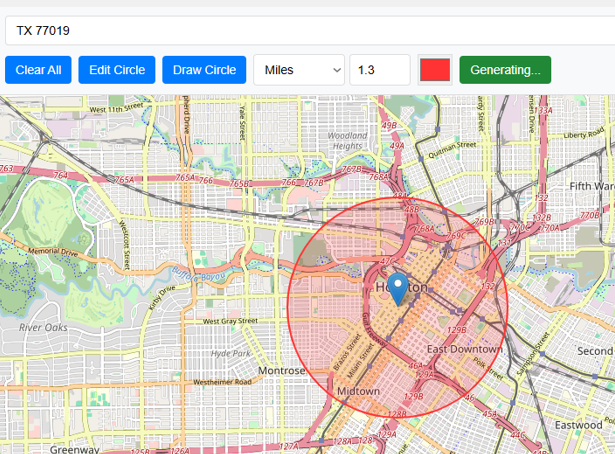
Export as GeoJSON
12Clear All

Click the red "Clear" button to remove the circle from the map and reset all measurements. The map returns to its default view, ready for a new circle.

Clear All
Example — 5 km Delivery Zone: A bakery in downtown Chicago enters its address, sets the radius to 5 and selects Kilometres, then clicks its location on the map. The circle shows exactly which streets and communities fall within the delivery area.

Radius and Area Unit Reference

Radius UnitIn Metres
1 Mile1,609.344 m
1 Kilometre1,000 m
1 Metre1 m
1 Foot0.3048 m
1 Yard0.9144 m
Area UnitConversion from m²
Acres÷ 4,046.86
Hectares÷ 10,000
km²÷ 1,000,000
ft²× 10.7639
yd²× 1.19599
mi²÷ 2,589,988

Frequently Asked Questions

Q: How accurate is the circle on the map?
A: Leaflet draws the circle using the Web Mercator projection, so it looks perfectly round at all zoom levels. The GeoJSON export uses the Haversine geodesic formula (128-point polygon), which is an accurate geodesic circle on the Earth's surface. When opened in QGIS with project CRS set to EPSG:3857 (Web Mercator), the exported polygon also appears as a perfect circle.
Q: Can I draw more than one circle?
A: Currently the tool supports one circle at a time. Drawing a new circle replaces the existing one. For multiple circles, download each as GeoJSON and layer them in QGIS or ArcGIS.
Q: How do I move the circle without using "Move Circle"?
A: Drag the blue marker pin at the circle's centre directly on the map. The circle follows in real time without needing to activate move mode.
Q: What does the GeoJSON export contain?
A: The file contains a single GeoJSON Polygon feature approximating the circle boundary with 128 equally-spaced geodesic points (Haversine formula). Properties include centre lat/lng, radius in metres, km, and miles, plus area in square metres. To see the circle as perfectly round in QGIS, go to Project > Properties > CRS and set it to EPSG:3857 (Web Mercator). In EPSG:4326 (geographic degrees), the polygon correctly appears slightly wider than tall at mid-latitudes — this is accurate geodesic behaviour, not an error.
Q: Can I save the map as an image?
A: Use your browser's built-in screenshot tool (Windows: Win+Shift+S, Mac: Cmd+Shift+4) or your OS snipping tool to capture the map. This captures the exact map view as displayed in the browser.

Open Source & Credits

  • Map library: Leaflet — open-source interactive maps
  • Geocoding: Nominatim / OpenStreetMap — address search
  • Map tiles: CARTO Light, OpenStreetMap, Esri (satellite/terrain)
Radius Map — Draw a Circle on Map Online Free | Maplity