Convert GPX Data to GeoJSON in Three Steps
GPX (GPS Exchange Format) is the standard data format used by GPS devices to store outdoor activities — walking, running, hiking, or professional field surveys. GeoJSON is the open web-mapping standard used by virtually every modern GIS platform. This free tool converts between them instantly, entirely in your browser, with a live map preview.
GPS devices are used daily by GIS professionals, surveyors, and outdoor enthusiasts. Whether you captured road sign coordinates, surveyed fiber-optic routes, or recorded a hiking trail, this converter turns your .gpx file into a .geojson file you can open in QGIS, ArcGIS, Mapbox, Leaflet, or any other GIS tool.
Key Features
- Upload & Preview — click or drag-and-drop a .gpx file to display it on the map instantly
- Tracks & Waypoints — GPS tracks render as lines; waypoints render as circle markers with popups
- Coordinate Popups — click any waypoint to see latitude, longitude, and elevation
- Basemap Switcher — toggle between Street, Satellite, and Terrain base layers
- One-Click Download — download the GeoJSON file directly with no intermediate steps
- 100% Client-Side — your GPX file is processed in the browser and never sent to a server
- Stats Bar — shows track count, waypoint count, and total feature count after loading
How to Convert GPX to GeoJSON — Step by Step
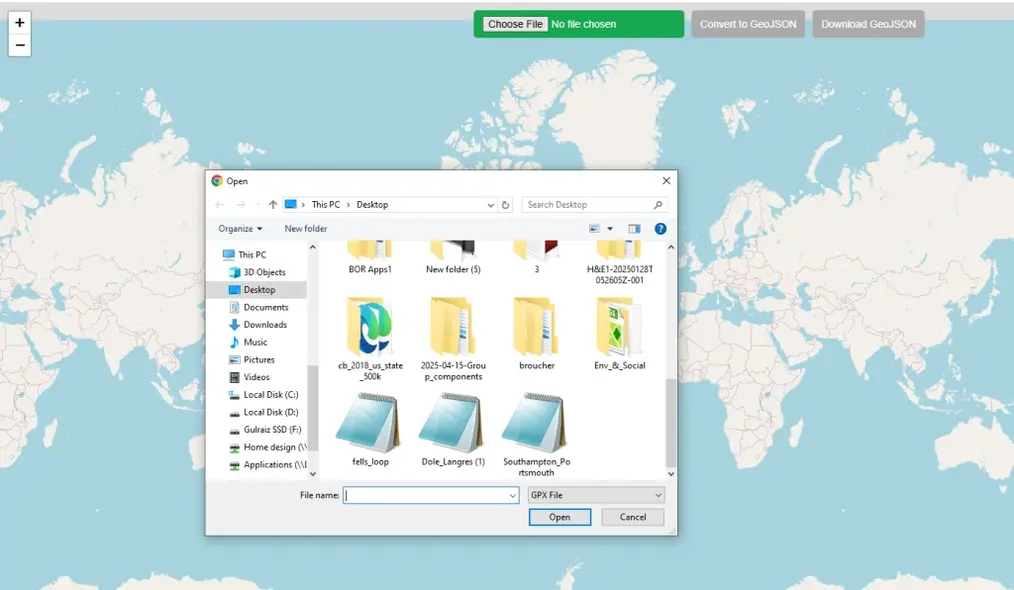
Click the green "Upload GPX" button at the top of the map, or drag and drop a .gpx file directly onto the map. The tool reads your file entirely in the browser — nothing is sent to a server.
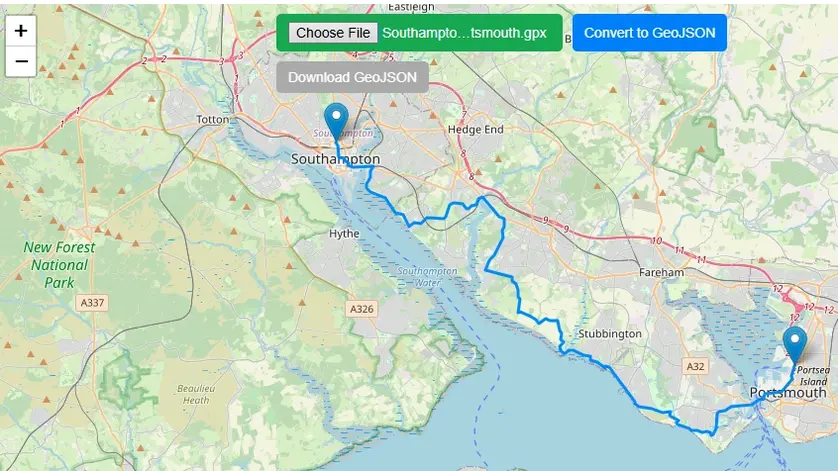
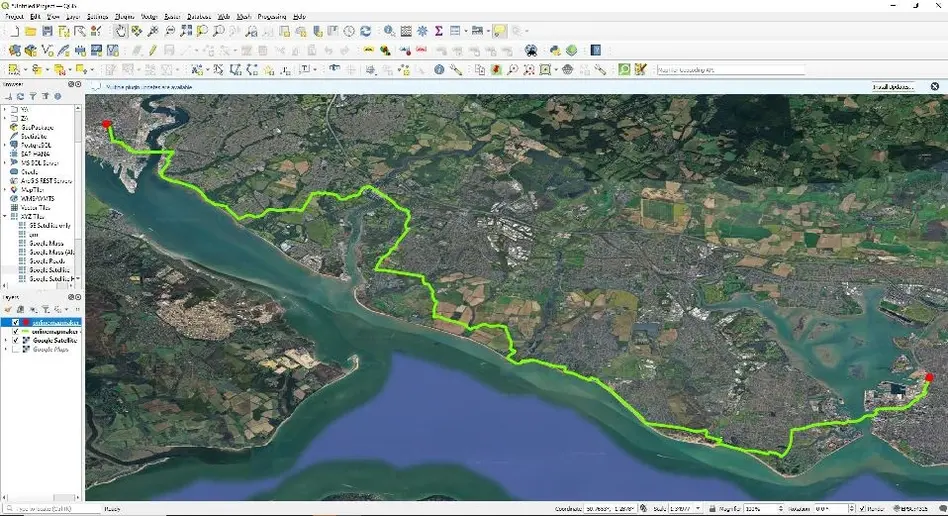
Your GPS tracks, routes, and waypoints appear instantly on the map. The view automatically zooms to the extent of your data. Click any track or waypoint marker to see its coordinates and elevation.
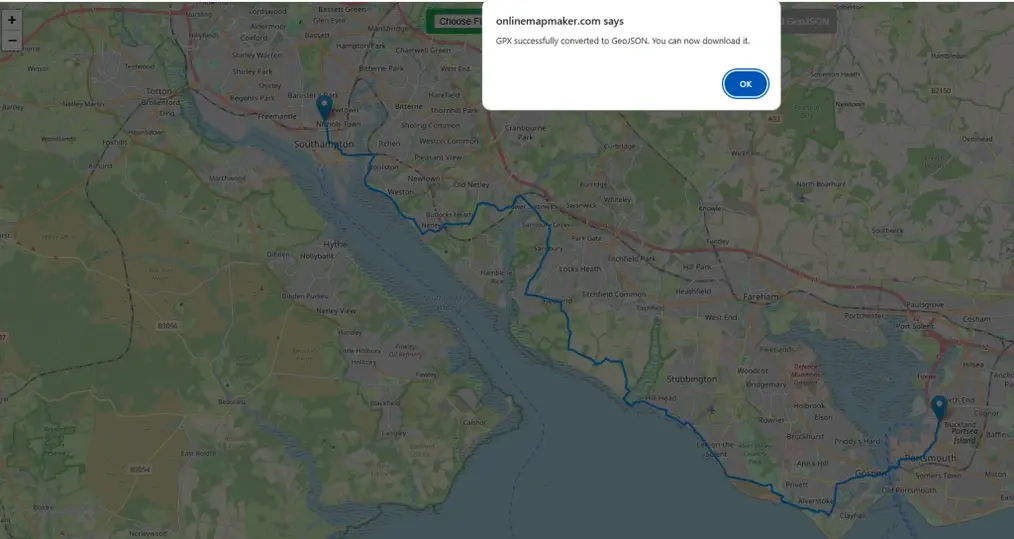
Once your GPX is displayed, click the "Download GeoJSON" button in the toolbar. The conversion happens instantly in your browser — tracks become LineString features and waypoints become Point features.
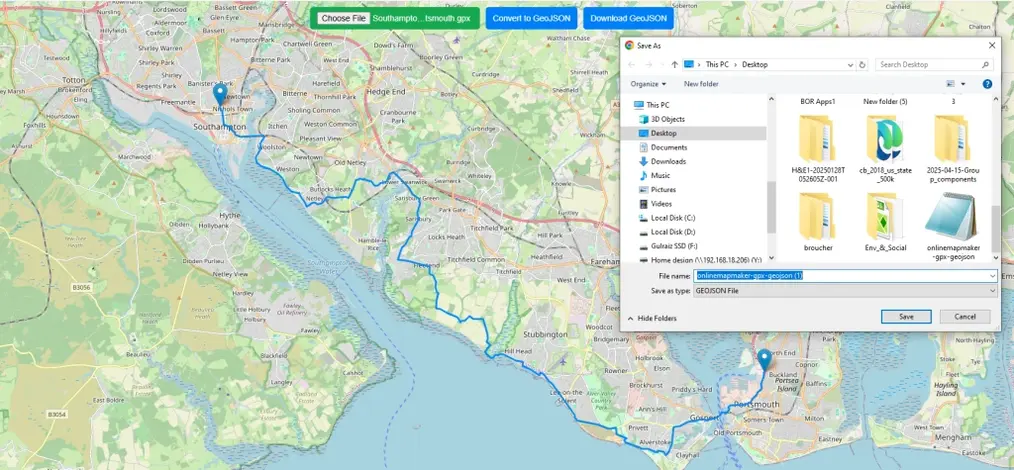
Your browser saves the .geojson file to your computer. The file is a standard GeoJSON FeatureCollection containing all tracks, routes, and waypoints from your original GPX file.
Open the downloaded GeoJSON in any GIS application — QGIS, ArcGIS, MapBox, Leaflet, or any web mapping tool. GeoJSON is natively supported by nearly every modern GIS platform.
A Brief History of the GPX File Format
GPX (GPS Exchange Format) was introduced in 2002 as an open, royalty-free standard for sharing GPS data between software applications. Built on XML, it was human-readable and easy for any software to parse — a key reason for its widespread adoption across GPS devices, fitness trackers, and GIS tools.
GPX stores three types of data: waypoints (individual GPS points with coordinates and optional elevation), tracks (a recorded path of GPS positions over time, stored as track segments), and routes (a planned course of waypoints in sequence). A single .gpx file can contain all three.
The Development of GeoJSON
Origins at MetaCarta (2008)
GeoJSON was created by developers at MetaCarta, Inc., a geographic search company later acquired by Nokia and then Microsoft. The primary authors were Chris Helm and Martin Daly, who published the original specification in 2008. Their goal was a simple, unified format for web mapping features that leveraged the growing JSON ecosystem.
Why JSON Instead of XML?
The choice of JSON over XML (used by GML and GPX) was strategic: JSON is less verbose, natively parseable in any browser via JSON.parse(), and maps directly to fundamental programming data structures. The result was smaller file sizes, faster transmission, and dramatically simpler developer tooling.
The Core Data Model
GeoJSON's structure is elegantly simple. Each feature has a geometry object (point, line, or polygon) and a properties object for non-spatial attributes. A FeatureCollection groups multiple features into one file — exactly how this converter outputs your GPX tracks and waypoints.
IETF Standard (RFC 7946, 2016)
GeoJSON was formalized as an IETF internet standard in 2016 via RFC 7946. Today it is supported natively by GitHub (renders GeoJSON files as maps), QGIS, ArcGIS, Mapbox, Leaflet, OpenLayers, and virtually every modern web-mapping library.
| Feature | GPX | GeoJSON |
|---|---|---|
| Format | XML | JSON |
| File size | Larger | Smaller |
| Web support | Limited | Universal |
| GIS support | Good | Excellent |
| Browser parse | Manual | Native |
| GPX Type | GeoJSON Geometry |
|---|---|
| Waypoint (wpt) | Point |
| Track (trk) | LineString / MultiLineString |
| Route (rte) | LineString |
| Track segment | LineString |
Frequently Asked Questions
Open Source & Credits
- GPX parsing: @tmcw/togeojson — open-source GPX/KML to GeoJSON converter
- Map library: Leaflet — open-source interactive maps
- Map tiles: CARTO Light, OpenStreetMap (fallback)
- Sample GPX data: github.com/gps-touring/sample-gpx